WordPress guide
How to add an AI chatbot to your WordPress website
Five steps, no code: the chatbot reads your own pages, answers visitors around the clock and saves every lead in WordPress.
Hear it now: call our AI on +1 209-209-4303
Free in the WordPress.org plugin directory. 7-day free trial, no card.
Quick answer
How do I add an AI chatbot to WordPress?
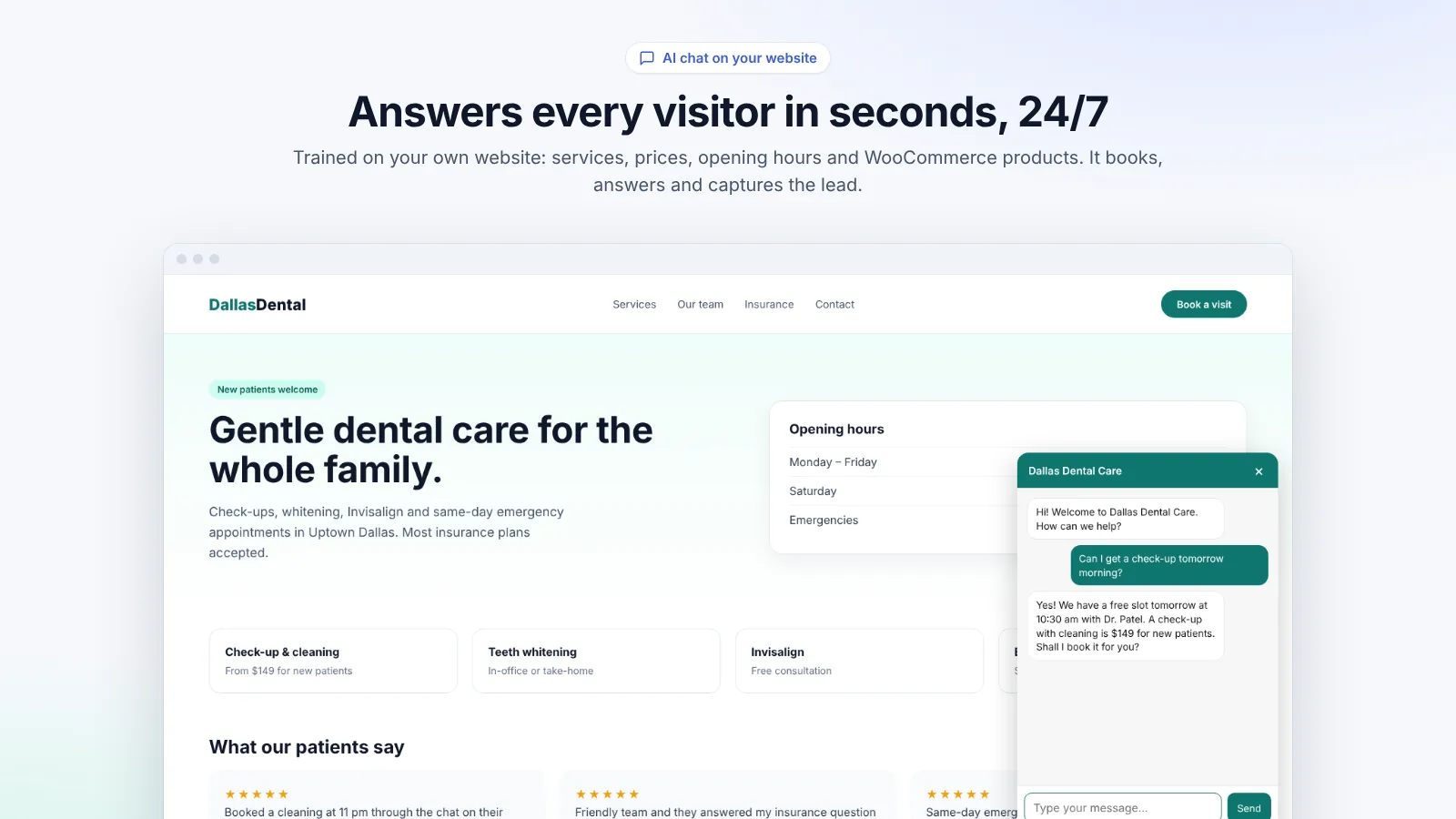
Install the Clientager plugin (Plugins → Add New → Upload), activate it and confirm your email with a 6-digit code. The AI then reads your published pages, posts and WooCommerce products, which takes a minute or two. Test it in the Preview tab, then start the 7-day free trial and the chat bubble appears on every page of your site. There is nothing to paste into your theme.
How it works
- 01
Install the plugin
Upload the Clientager zip under Plugins → Add New → Upload, then activate it.
- 02
Confirm your email
Open Clientager in the WordPress menu, enter your email and type the 6-digit code we send.
- 03
Let the AI learn
It reads your published pages, posts and WooCommerce products in a minute or two.
- 04
Test it privately
Ask it questions in the Preview tab. Visitors do not see anything yet.
- 05
Go live
Start the 7-day free trial (no card) and the chat appears on every page.
What you need before you start
A WordPress site you can log in to as an administrator, running WordPress 6.0 or newer with PHP 7.4 or newer. That covers almost every hosting plan. You do not need a developer, an API key from an AI company or any code in your theme: the plugin adds the chat for you and removes it cleanly if you ever switch it off.
It helps if your important pages are published and up to date, because that is what the AI learns from: services, prices, opening hours, delivery or booking details, your FAQ and your contact page. If something is missing, add it to a page before you connect, or add it later and press Update now in Settings.
Step by step
Download the plugin from WordPress plugin, then in WordPress go to Plugins → Add New → Upload Plugin, choose the zip and click Install Now, then Activate. A Clientager item appears in your admin menu. Open it, type your email and enter the 6-digit code we send you. That links the site to your Clientager account; nothing is shown to visitors yet.
Next, click Learn my website. The plugin sends your published pages, posts and products to Clientager, and the AI builds its knowledge from them. Open the Preview tab and ask what your customers usually ask: prices, opening hours, whether you deliver to a certain area. Preview gives you 25 free test messages, so you can judge the answers before anyone else sees them.
When you are happy, start the 7-day free trial. There is no checkout and no card. The chat goes live on every page, with up to 150 AI conversations and 50 AI emails during the trial. If you choose a plan before the trial ends, it simply keeps running; if you do not, it switches itself off and your settings stay as they were.
Make it look and sound like your business
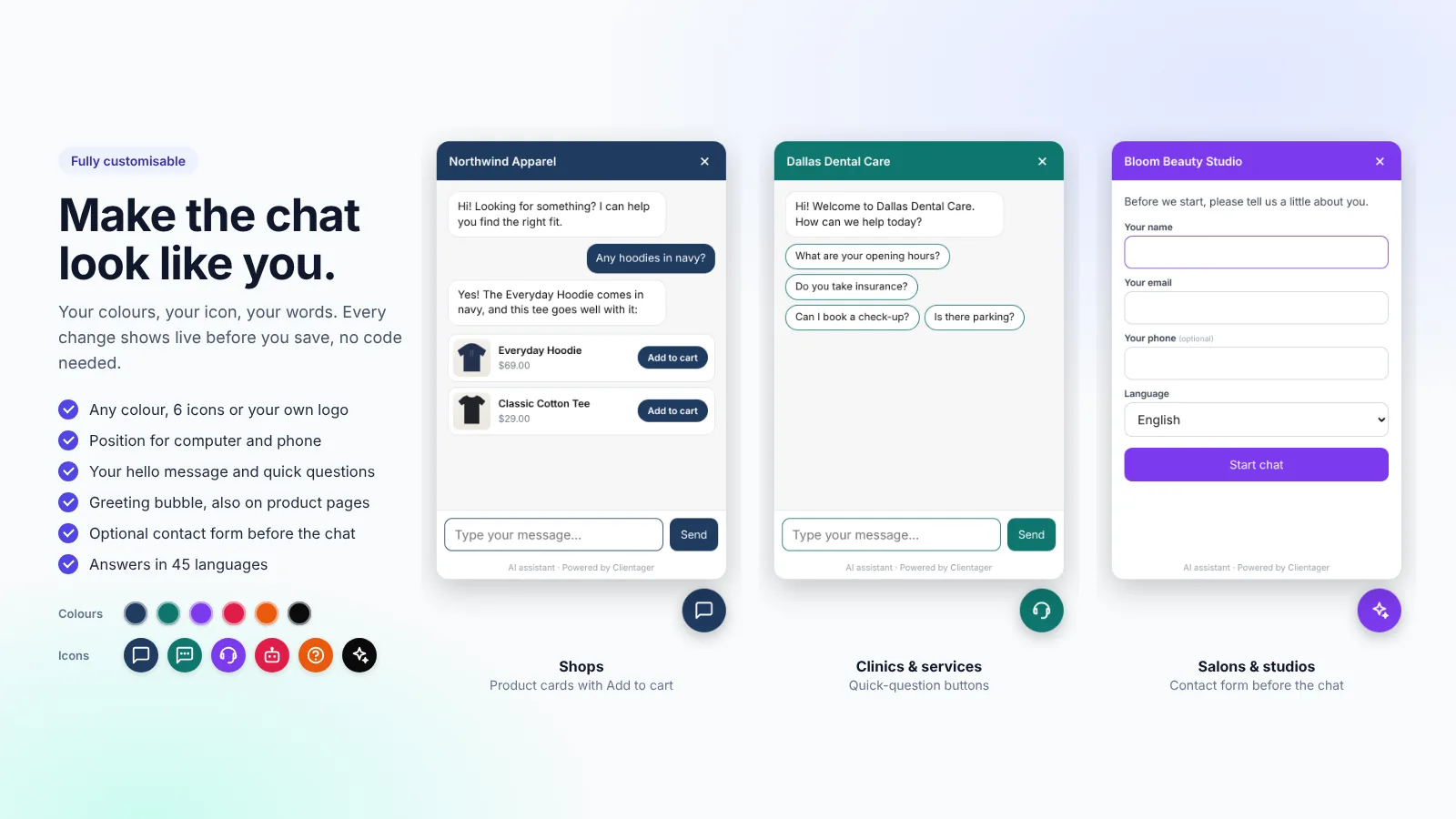
Under Chat widget you choose the colour, one of six icons or your own logo, and where the button sits, separately for computer and phone so it never covers your own buttons. You can write the greeting, add quick-question buttons such as "Opening hours" or "Book an appointment", and show a short greeting bubble after a few seconds. Every change shows in a live preview before you save.
If you want to know who you are talking to, switch on the form before the chat: name, email, optional phone and language. Each person who fills it in becomes a lead straight away, even if they never type a question.
What happens after it goes live
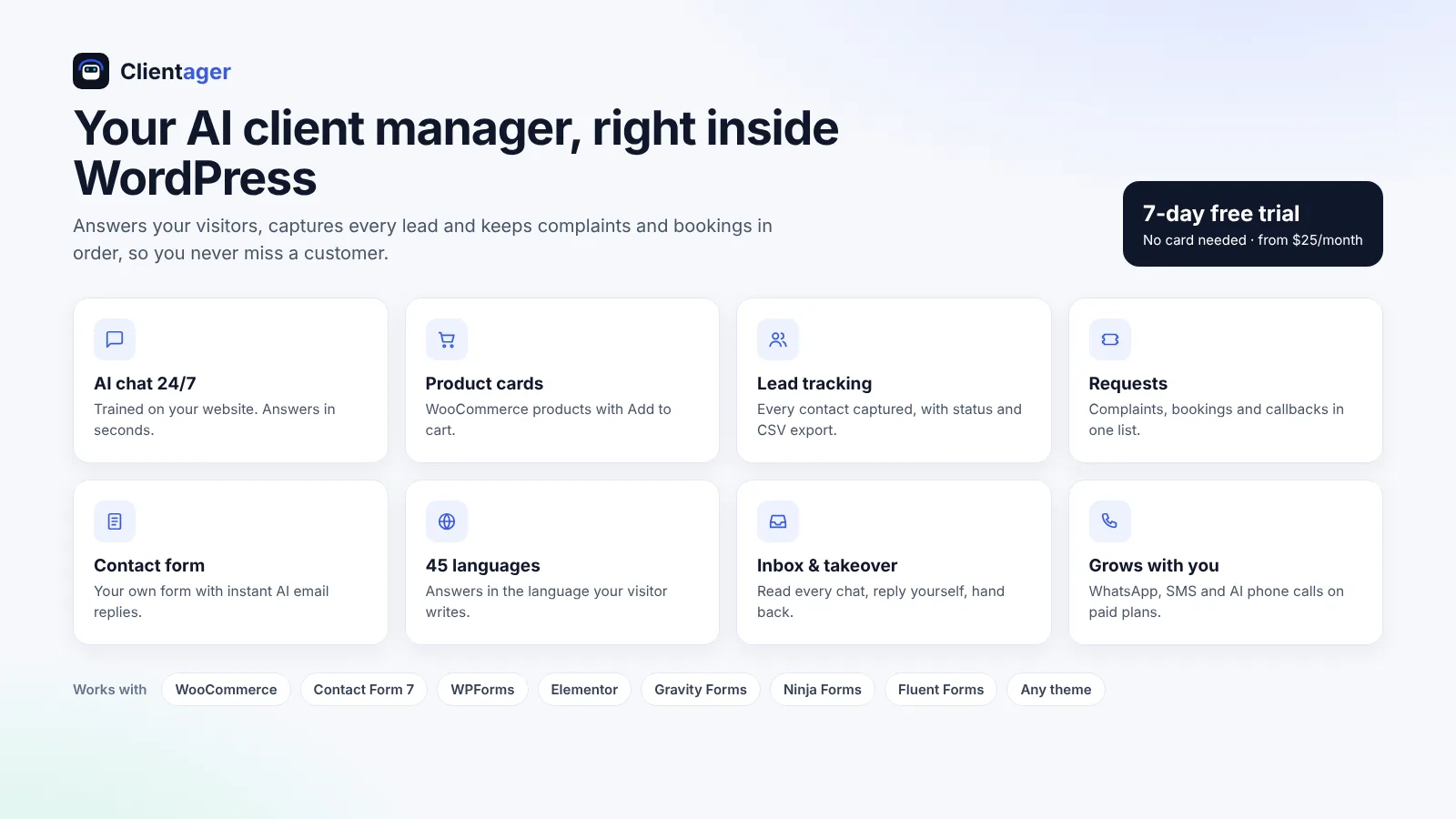
Every conversation appears in the Inbox tab, where you can read it, reply yourself and hand it back to the AI. People who leave an email or phone number become leads, with a status you can update and a CSV export. Complaints, booking requests and callback requests land in Requests, so nothing slips through. When you edit a page, post or product, the AI updates itself about a minute later.
Frequently asked questions
Is the chatbot free?
The plugin is free to install and you get 25 test messages in Preview plus a 7-day free trial with no card. After that, plans start at $25 a month (Lite), which includes 500 AI conversations and 500 AI emails. See /pricing.
Will it slow my site down?
No. The chat loads after your page has loaded, from Clientager's servers, and it runs in its own isolated box so your theme's styles cannot break it and it cannot break your theme.
Does it work with my theme and page builder?
Yes. The plugin adds the chat to every page itself, so it works with any theme and with builders like Elementor, Divi and the block editor. You do not edit theme files.
Can I remove it later?
Yes. Switch the chat off in Settings, or deactivate and delete the plugin. Uninstalling removes everything the plugin saved in WordPress.
More WordPress guides
Want this for your business?
Try it free for 7 days, no card needed: AI website chat, WhatsApp and email, trained on your own website. AI phone calls come with paid plans.