WordPress guide
Add a chatbot to WordPress without writing code
No script tags, no OpenAI account, no developer. Everything happens in your WordPress admin.
Hear it now: call our AI on +1 209-209-4303
Free in the WordPress.org plugin directory. 7-day free trial, no card.
Quick answer
Can I add an AI chatbot to WordPress without coding?
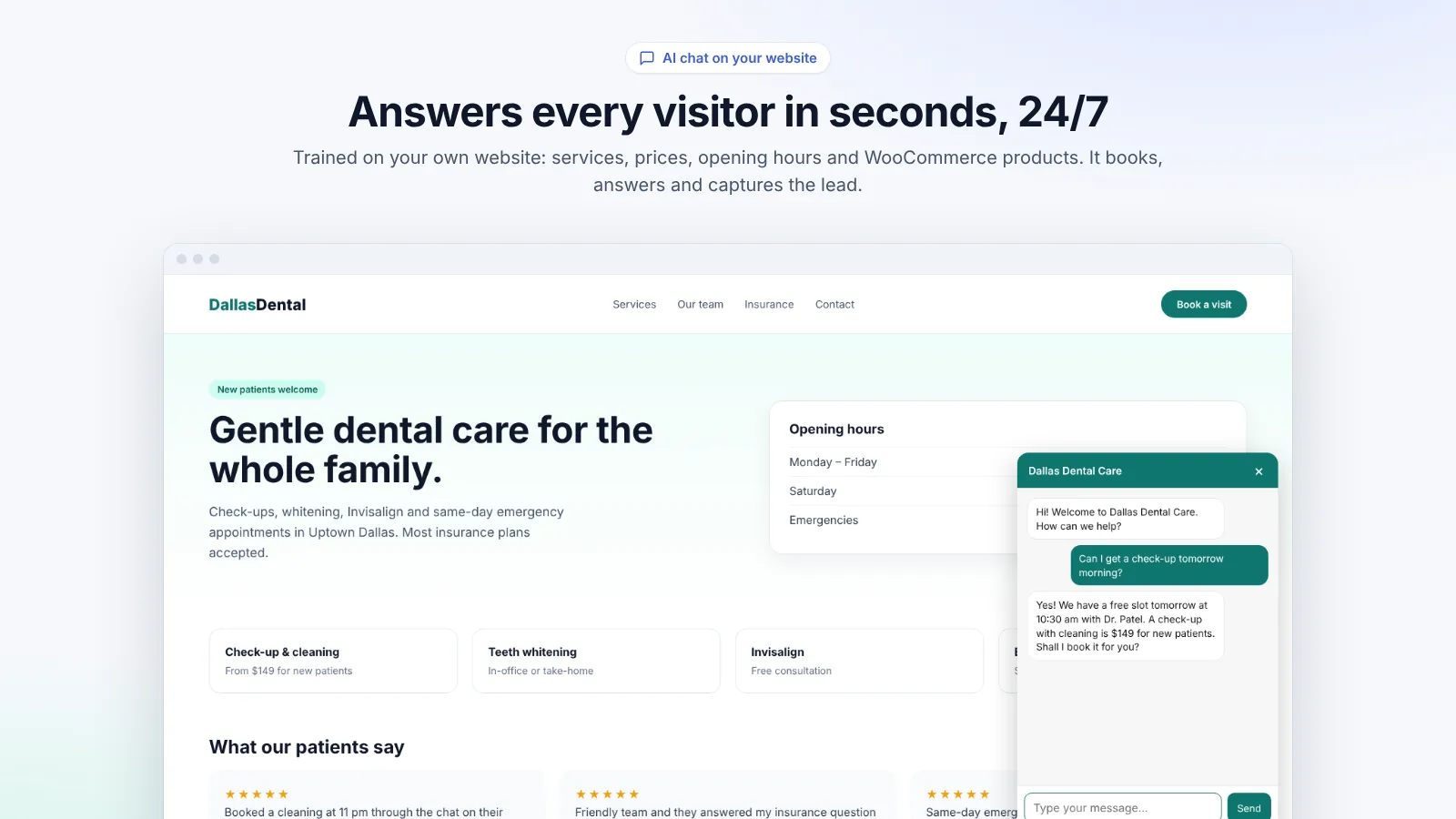
Yes. With the Clientager plugin you install, connect with your email and press one button to let the AI learn your site. You do not paste code into your theme, create an account with an AI provider or manage API keys: the AI, hosting and updates are included. Colours, messages and position are set with simple controls and a live preview.
How it works
- 01
Install the plugin
Upload the Clientager zip under Plugins → Add New → Upload, then activate it.
- 02
Confirm your email
Open Clientager in the WordPress menu, enter your email and type the 6-digit code we send.
- 03
Let the AI learn
It reads your published pages, posts and WooCommerce products in a minute or two.
- 04
Test it privately
Ask it questions in the Preview tab. Visitors do not see anything yet.
- 05
Go live
Start the 7-day free trial (no card) and the chat appears on every page.
What "no code" really means here
Many chatbot tools say no code but still ask you to paste a script into your header, create an account with an AI company, copy an API key, write prompts and upload documents. Clientager removes all of that. The plugin adds the chat to your pages itself, the AI model is included in your plan, and the knowledge comes from your own published pages, so there is nothing to upload or write.
Because the chat runs in its own isolated box on the page, your theme's styles cannot change it and it cannot break your layout. If you deactivate the plugin, the chat disappears; if you delete it, everything it saved in WordPress is removed.
The settings you can change, without touching code
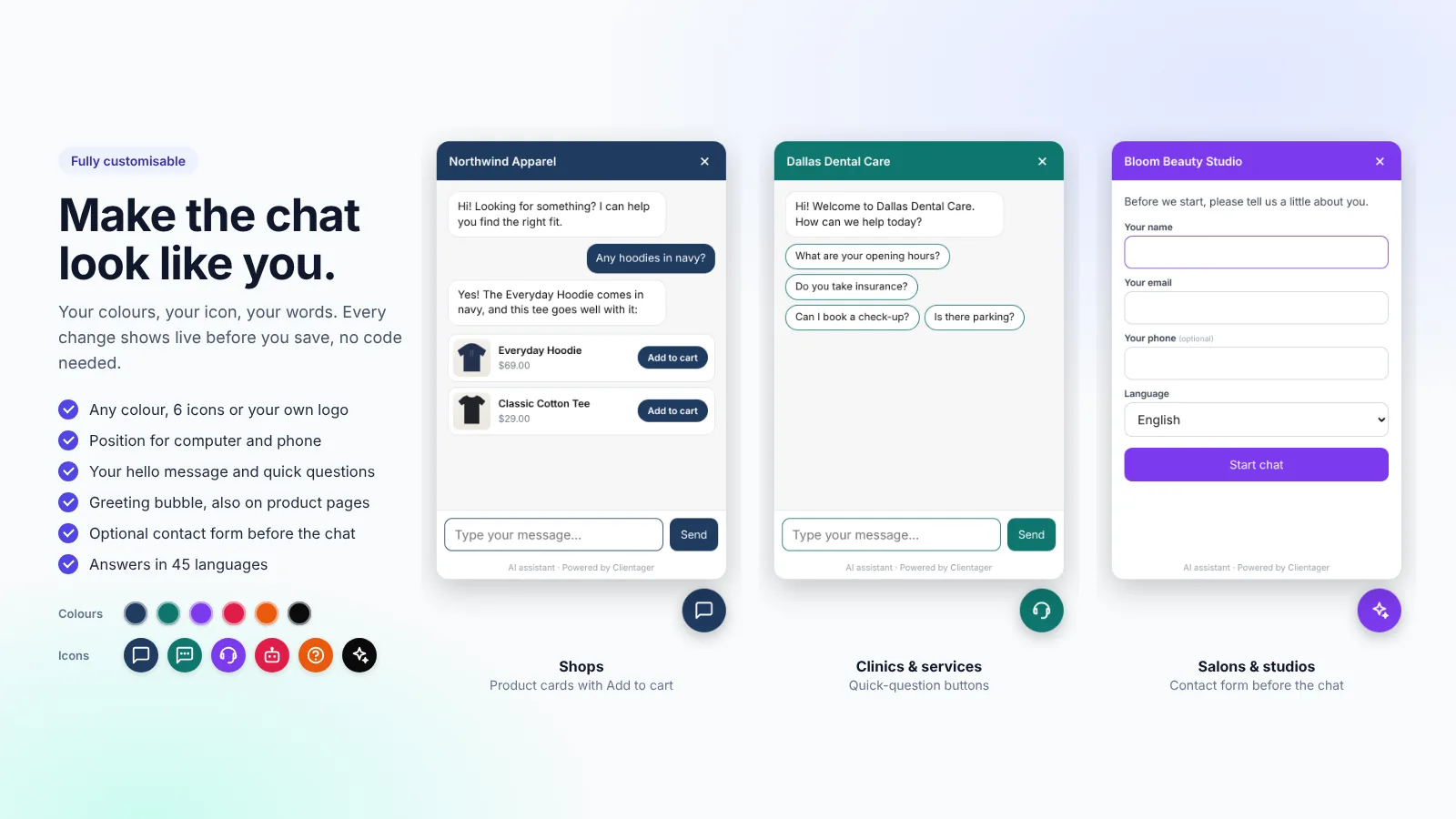
Everything is a control with a live preview: colour picker, six icons or your own image, button position with separate distances for computer and phone, greeting text, quick-question buttons, a greeting bubble, a different greeting on product pages, and an optional form before the chat. A Reset button returns any setting to the default.
- Colour, icon or logo
- Position on computer and phone
- Greeting and quick questions
- Greeting bubble and product-page greeting
- Form before the chat (name, email, phone, language)
What the AI is told to do (and not do)
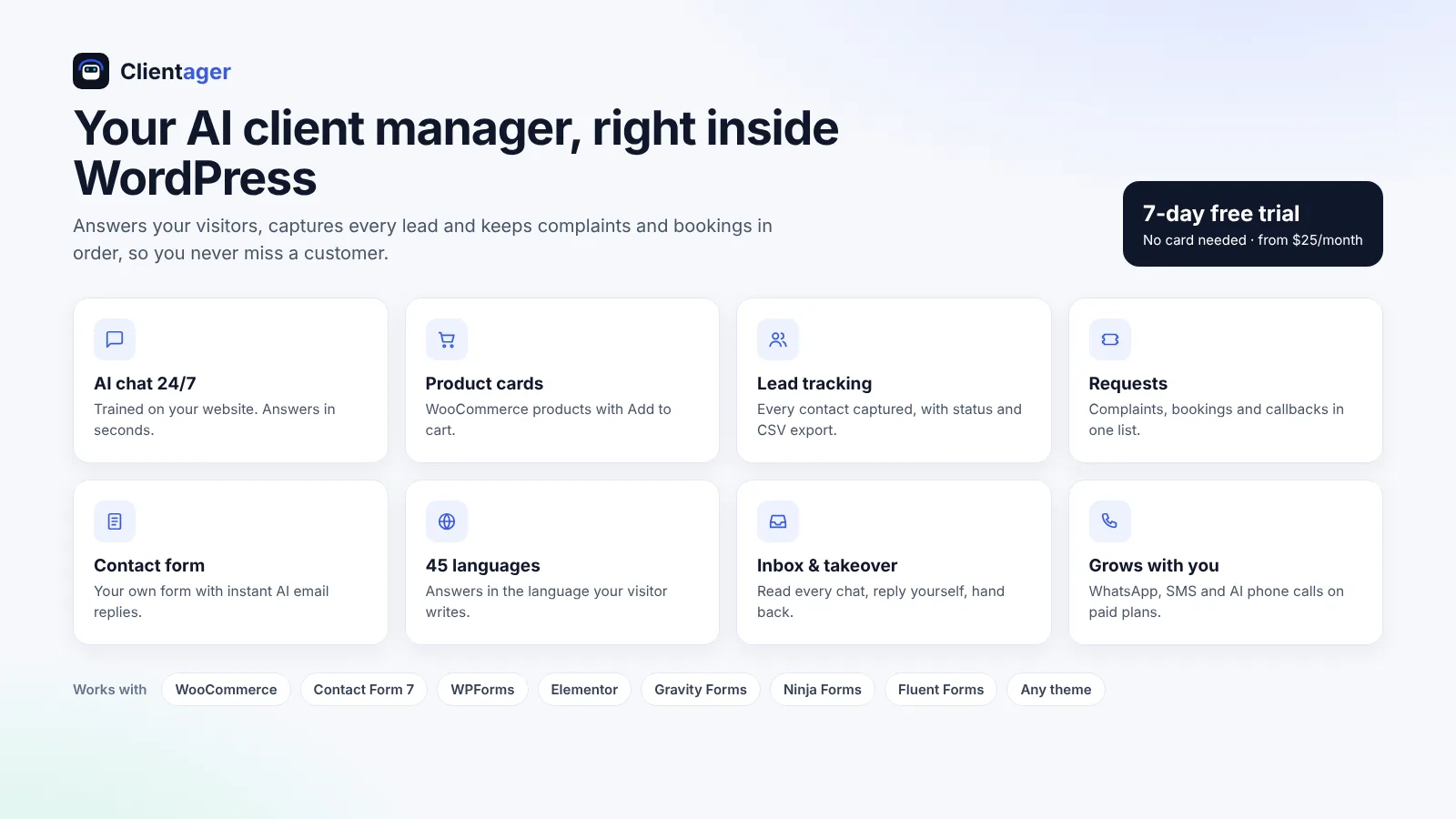
You do not write prompts. The assistant is set up to answer only about your business, quote prices and details only from your own content, say it is an AI at the start of a chat, and hand over to your team for anything it cannot do. Requests that need a person, such as complaints or callbacks, are saved in the Requests tab for you.
Frequently asked questions
Do I need an OpenAI or other AI account?
No. The AI is part of Clientager and included in your plan. There are no API keys to create or pay for separately.
Do I need to write a prompt or upload documents?
No. The AI learns from your published pages, posts and products. To change what it knows, edit your pages; it updates itself about a minute later.
Will it work with Elementor or Divi?
Yes. The chat is added to every page by the plugin, independent of your theme or page builder.
Can I hide the chat on some pages?
The chat shows on all public pages so visitors can always ask. You can switch it off entirely in Settings at any time.
More WordPress guides
Want this for your business?
Try it free for 7 days, no card needed: AI website chat, WhatsApp and email, trained on your own website. AI phone calls come with paid plans.